

S3U Gate User Guide
How to get onto the company VPN: sign in to the portal, set up 2FA, download your profile and connect.
1Overview
The company VPN runs on OpenVPN. S3U Gate is the web portal in front of it. You use the portal to set up two-factor
authentication on your phone and to download your VPN profile, a small .ovpn file that you import into
your VPN client. After that you only need the portal again when something changes, for example when you get a new phone.

What you need
Your username and password. Normally that is your company account. External partners get a local account from the administrator instead.
An authenticator app on your phone. Google Authenticator, Microsoft Authenticator, FreeOTP and 2FAS all work.
A VPN client. On macOS and Linux that is S3U Connect, which you get from your administrator. On Windows use OpenVPN Connect or OpenVPN GUI, on Android and iOS OpenVPN Connect.
And the address of the portal, something like https://vpn-portal.example.com. Your administrator gives it to you.
2Signing in to the portal
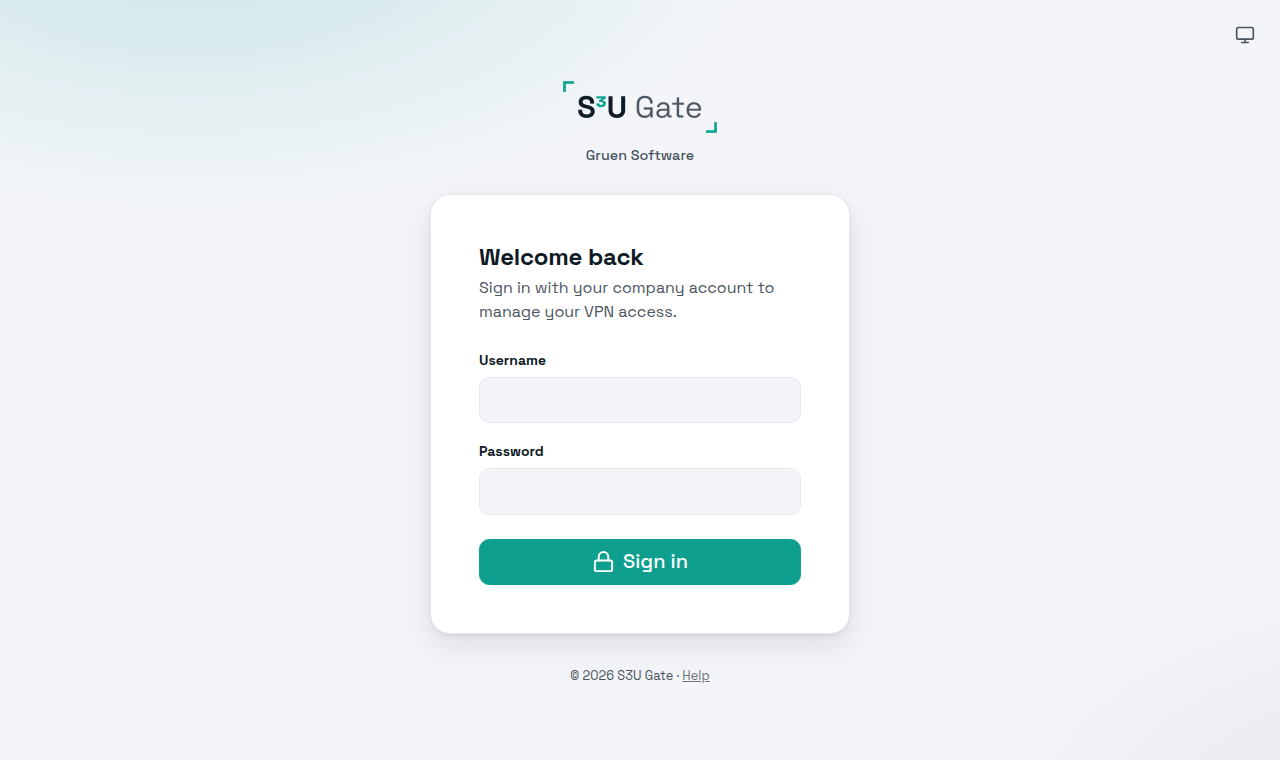
Open the portal address in your browser and enter your username and password. Which username you type depends on your account:
- A normal company account: just your name, for example
sat. - An account from another company or domain:
name@domain, for examplesat@local.example.com. If this applies to you, your administrator will have told you. - A local account: the name the administrator gave you.
If you have already set up 2FA, the portal then asks for the 6-digit code from your app. If an administrator has just created a local account for you, you have to replace the temporary password with your own first (see chapter 7).
3The "My VPN Access" page
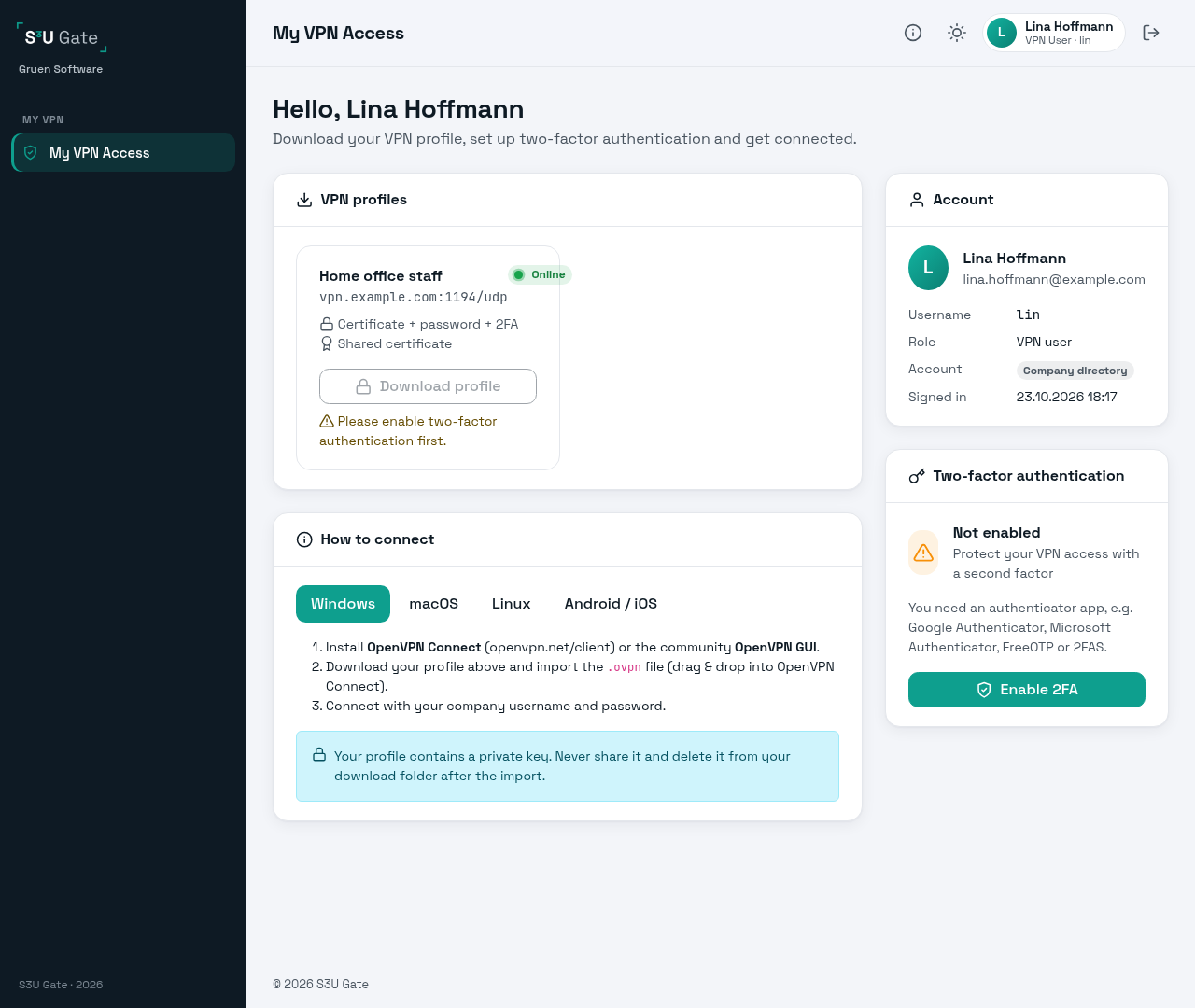
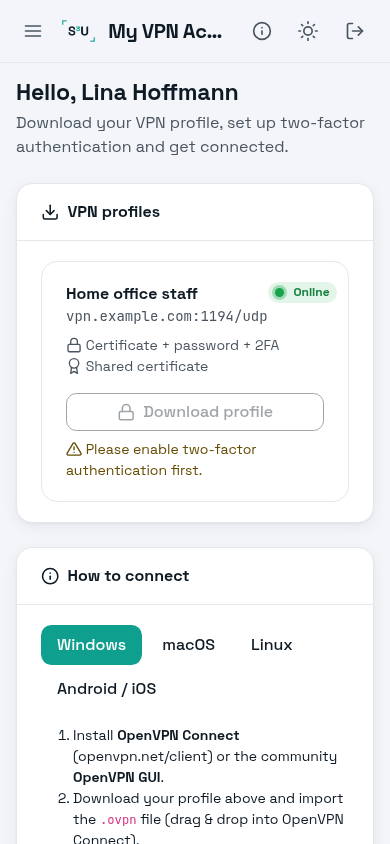
This is the page you see after signing in. On the left there is one card for each VPN server you are allowed to use. It shows whether the server is online, its address, how you log in, and the button to download the profile. Below the cards there are short connection instructions for each operating system.
On the right you see your account details and your 2FA status, with the buttons to enable or reset 2FA. Local accounts also see their expiry date and a Change password button here.
The i icon at the top opens this guide.
4Two-factor authentication (2FA)
With 2FA a stolen password is not enough to get into the VPN. When you connect, you also type a 6-digit code from your phone. The code changes every 30 seconds. Most VPN servers require 2FA, and until you have set it up the download button stays locked.
Setting it up
- Install an authenticator app on your phone if you don't have one yet.
- On "My VPN Access", click Enable 2FA and confirm with your password.
- Scan the QR code with the app. If scanning doesn't work, type in the key shown under the QR code by hand and choose "time based".
- Type the code the app now shows and click Verify & enable. You have 15 minutes for this, after that you have to start again.
- You now get 10 backup codes. Save them somewhere safe, your password manager is a good place. They are shown only this one time.
Backup codes
If your phone is not at hand, you can type a backup code instead of the 6-digit code when you connect to the VPN. Each one works once. Treat them like a password, and don't keep them on the same phone as the app.
New phone
As long as you still have the old phone, you can move 2FA yourself. Click Reset 2FA, enter your password and a code from the old phone, then scan the new QR code with the new phone. The rest is the same as the first setup.
5Downloading your profile
Find the card of the VPN server on "My VPN Access", for example Home office staff, and click Download profile.
You get a file such as staff.ovpn or staff-yourname.ovpn. Import it into your VPN client
(chapter 6) and then delete it from your downloads folder.
A few things you might notice on the cards:
- The button is locked and says Please enable two-factor authentication first. This server needs 2FA. Set it up (chapter 4) and come back.
- You see several cards. You are allowed on more than one server, for example Berlin and Basel. Download each profile you need.
- Personal certificate means the profile contains a certificate made only for you. If it is ever revoked, just download the profile again.
- Shared certificate means everyone uses the same certificate and you are recognised by your password and 2FA code.
- No card at all means no VPN server has been assigned to you yet. Ask your administrator.
6Connecting
When you connect, the VPN client asks for your username and password, the same ones you use in the portal. If the server uses 2FA, it then asks "Enter Authenticator Code". Type the current code from your app, or one of your backup codes.
Windows
Install OpenVPN Connect (from openvpn.net/client) or the community version, OpenVPN GUI. In OpenVPN Connect go to
Import Profile, then Upload File, and pick the .ovpn file. In OpenVPN GUI right-click the tray icon and choose
Import file. Then connect.
macOS
Use S3U Connect. Install OpenVPN with Homebrew, then install the app you got from your administrator once. Add
--company with your company name; the portal's How to connect box shows the exact command.
brew install openvpn
sudo "./S3U Connect.app/Contents/MacOS/S3U Connect" install --company "Example GmbH"
Start S3U Connect, click Import profile…, pick the .ovpn file and click Connect. The app isn't signed,
so on the first start macOS warns you; open it with right-click → Open.
Linux
Use S3U Connect. Install OpenVPN, then install the s3u-connect file you got from your administrator once
(with your company name, as shown in the portal's How to connect box). After that S3U Connect is in the app menu:
click Import profile…, pick the .ovpn file and click Connect. You don't need root to connect.
sudo apt install openvpn
sudo ./s3u-connect install --company "Example GmbH"
Without S3U Connect you can start openvpn on the command line. It needs sudo; without it you get
Cannot ioctl TUNSETIFF tun: Operation not permitted. Or import the profile into NetworkManager.
# on the command line
sudo openvpn --config staff.ovpn

# or NetworkManager (desktop)
sudo apt install network-manager-openvpn-gnome
nmcli connection import type openvpn file staff.ovpn
Android and iOS
Install OpenVPN Connect from the Play Store or App Store. The easiest way to get the profile onto the phone is to sign in to the portal on the phone and download it there. Open the file with OpenVPN Connect and connect.
Once you are connected, you won't be asked for a new code every hour. The server gives your client a session token for that. Only after you disconnect do you sign in again with password and code.
7Changing your password (local accounts)
If you have a company account, you change your password in the company directory, for example in the FreeIPA self-service page, not in S3U Gate.
Local accounts change it in the portal. Click Change password on "My VPN Access". If you just got a temporary password, the portal takes you there by itself. Enter the current password and the new one twice. The new password needs at least 10 characters with letters and digits, and it can't be your username or the old password.
There is also an option to disconnect your running VPN sessions. Use it if you think someone else may know the old password.
Local accounts can have an expiry date. After that date the account stops working. Ask your administrator if you need it longer.
8When something doesn't work
| What you see | What to do |
|---|---|
| "Invalid username or password" | Check the spelling, and whether you need name or name@domain. After 5 failed attempts you have to wait 15 minutes. |
| "Your account is not allowed to use the VPN" | You are not in a VPN group yet. Ask your administrator. |
| The 2FA code is rejected | Set your phone's clock to automatic and wait for the next code. |
The VPN client says AUTH_FAILED | Usually a wrong password or code. It can also mean your account is locked or expired, or you are no longer in the group for this server. Sign in to the portal to check. If that works too, ask your administrator. |
Cannot ioctl TUNSETIFF tun: Operation not permitted (Linux) | Start openvpn with sudo, or use NetworkManager. |
| The connection drops and doesn't come back | An administrator or an automatic check disconnected you, for example after a password change or because you were removed from a group. Connect again. If that is refused, ask your administrator. |
| Connected, but internal servers can't be reached | Disconnect and connect again. If it still doesn't work, tell your administrator which server or address you are trying to reach. |
| The profile stopped working after a change | Download it again. The server or your certificate may have changed. |
| "Your session has expired" | You were inactive for 15 minutes. Sign in again. |
9Staying safe
Never give anyone your password, a 2FA code or your profile. Administrators will never ask you for them.
Keep your backup codes in a password manager, not on the phone with the authenticator app. Use the VPN only on your own devices,
with updates installed and a screen lock. If your phone or laptop gets lost, tell your administrator right away.
And delete the .ovpn file once it is imported.